
What a Show Controller Does for Your Holiday Light Show
A show controller is the hardware device that sits between your show player and your pixel lights, receiving a timed sequence, and sending per-channel color data to every pixel in your display so the whole show runs synchronized to music or a schedule. That single sentence covers the role of a show controller explained at its core.
Here is what that means in practice:
-
The controller receives data from a show player (such as EZPlayer or Falcon Player running on a Raspberry Pi) using the E1.31 protocol over your home network, then translates that data into WS2811 pixel signals your lights understand.
-
Sequencing software like xLights or EZRGB’s EZSequence creates the show file; the controller’s job is purely playback and translation, not creation.
-
EZRGB ships preprogrammed controllers paired with cloud-connected EZPlayer, so the mapping between your layout and your lights is done before the box arrives at your door.
Key Takeaways
A show controller is the hardware that translates sequence data into pixel signals, and pairing it with pre-mapped sequences and cloud playback is the fastest route to a working animated display.
| Point | Details |
|---|---|
| Controller’s core role | Receives E1.31 data from the show player and outputs WS2811 signals to your pixel props |
| Universe math | One DMX universe = 512 channels, addressing roughly 170 RGB pixels; plan universes before buying |
| Centralized vs. distributed | Centralized suits compact displays; distributed controllers reduce long cable runs in large yards |
| Safety first | Use GFCI-protected outlets, IP65 enclosures, and stay below 80% of circuit capacity outdoors |
| EZRGB plug-and-play path | Layout Designer + EZSequence + preprogrammed controller + EZPlayer eliminates manual channel mapping |
Table of Contents
Why a show controller matters more than a simple timer
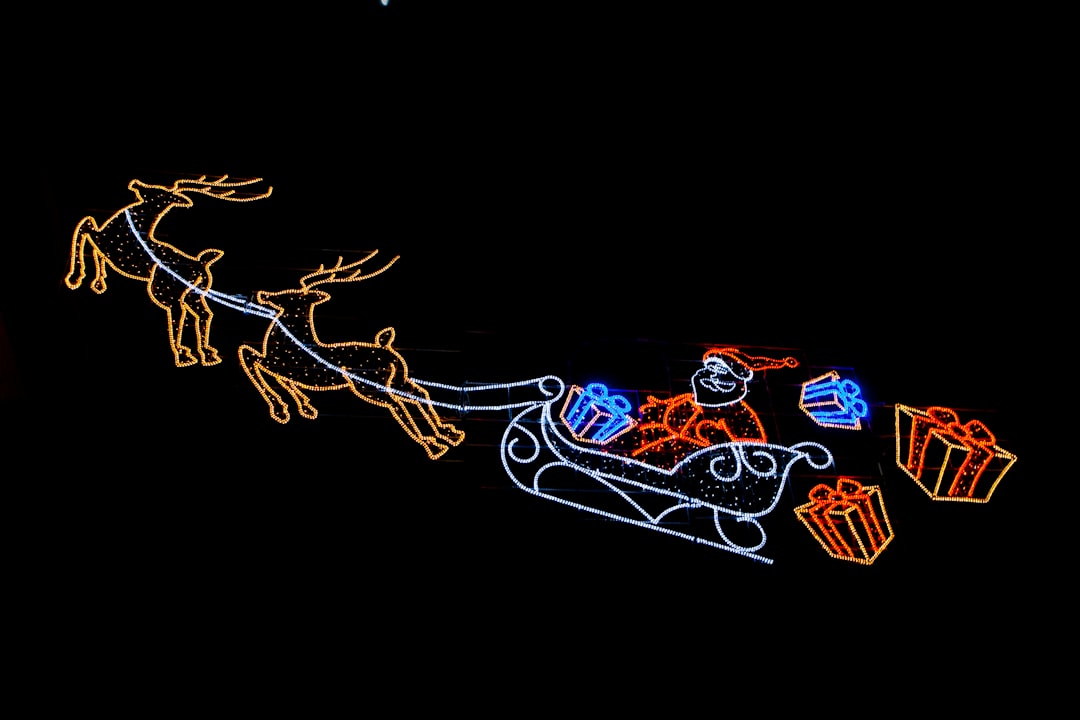
Traditional incandescent string lights or basic LED strands run on a plug-in timer. That works fine for a static display, but it cannot synchronize colors, patterns, and music across hundreds or thousands of individually addressable pixels. A show controller handles that coordination reliably, frame after frame, every night of the season.
The practical benefits for a homeowner are concrete. Your display starts and stops on a schedule without you touching anything. Every pixel fires at the right moment because the controller processes the sequence data in real time.
Pro Tip: Pair your controller with EZPlayer’s cloud scheduling so you can adjust show times, swap songs, or push sequence updates from your phone without going outside or rebooting hardware.
Pre-mapped kits reduce setup friction further. When the sequence already knows which output port connects to which prop, you skip the most error-prone step in a DIY build.
The parts your show-control system actually needs
Show control links separate entertainment subsystems (lighting, audio, video) so they operate together rather than independently. For a home holiday display, the system is simpler but follows the same architecture.
Core components:
-
Layout designer — a photo of your home with props placed digitally (EZRGB’s Layout Designer handles this)
-
Sequence file — the per-channel animation data, generated automatically by EZSequence when you purchase a song
-
Show player — EZPlayer (cloud-connected, browser-controlled) or Falcon Player (FPP)
-
Show controller(s) — the hardware that receives E1.31/DDP data and drives your pixel outputs
-
Power supplies — sized to the pixel count on each output (preinstalled in EZRGB controllers
-
Pixel props — WS2811 RGB nodes or c9s, strips, or pre-built props from EZRGB
-
Audio delivery — FM transmitter, Bluetooth speaker, or streaming link for visitors
Centralized vs. distributed controllers:
| Feature | Centralized controller | Distributed small controllers |
|---|---|---|
| What it controls | All outputs from one box | Eight props or less |
| Wiring runs | Longer pixel cable runs to props | Short runs; controller sits near prop |
| Best for | Compact displays, single-location installs | Large yards, props spread across property |
| Expansion | Add outputs or a second controller | Add another small controller near new prop |
| Example | Multiple props off one large controller | EZRGB Baldrick 8-port controller |
A typical starter kit from EZRGB includes the Layout Designer photo upload, one ready-programmed controller with 8 active outputs, a power bundle, and ready to load into EZPlayer.
How timing and data move through your system
Understanding the data path helps you troubleshoot fast and configure correctly. The standard hobbyist workflow runs: xLights or EZSequence → show player (EZPlayer or FPP on Raspberry Pi) → E1.31 over Ethernet → controller → WS2811 pixels.
Key terms you will see on product pages and support docs:
-
E1.31 / sACN — the network protocol that carries per-channel lighting data from the show player to the controller over standard Ethernet
-
DMX universe — a block of 512 channels; one universe addresses roughly 170 RGB pixels (3 channels per pixel)
-
WS2811 / WS2812 — the pixel chip standard that most addressable holiday props use; the controller outputs this signal directly to the pixel string
-
Universe addressing — each controller port is assigned a universe number so the show player knows which data packet goes where
-
FPP (Falcon Player) — open-source show player software that runs on a Raspberry Pi and outputs E1.31 to controllers
-
SMPTE timecode — a timing reference used in professional shows to sync audio and lighting; EZPlayer handles this automatically for EZRGB sequences
Channel math matters for planning. A show file streams RGB values many times per second. If your display uses 500 pixels, that is roughly 1,500 channels, or three DMX universes. Choose a controller that supports at least that many universes before you buy.
How to choose the right controller or EZRGB kit for your home
Match your controller to your display size and your comfort with configuration. Work through this checklist before purchasing:
-
Estimate your pixel count — count props and multiply by pixels per prop; add 20–30% for future expansion
-
Choose centralized or distributed — one large yard with spread-out props favors distributed; a roofline-focused display suits a centralized controller
-
Verify protocol support — confirm the controller accepts E1.31/sACN/DDP and supports enough universes for your pixel count
-
Check power handling — each output port has a maximum pixel load; match your power supply wattage to the pixel count per string
-
Confirm networking — wired Ethernet is preferred; if Wi-Fi is your only option, verify the controller supports it and use a strong signal
-
Look for cloud EZPlayer support — EZRGB controllers connect directly to EZPlayer so you schedule shows, sync songs, and push updates from a browser
Ease-of-use markers to prioritize: pre-mapped EZSequence files, a web UI for port configuration, and cloud scheduling that does not require a laptop running outdoors.
Adding a new prop mid-season is easy when your controller has headroom; replacing the controller because it is maxed out is not.*
Your beginner checklist from unboxing to first playback
Follow these steps in order and most small kits are running the same afternoon you unbox them. Larger setups typically take 1–3 evenings.
-
Photograph your home and upload it to the EZRGB Layout Designer
-
Drag and drop props onto the photo to match your planned installation locations
-
Purchase or download the matching EZSequence file for your chosen songs
-
Receive your preprogrammed controller and power bundle; verify contents against the packing list
-
Mount props and run pixel cables back to the controller location
-
Connect the controller to your router with an Ethernet cable, then connect power supplies
-
Log into EZPlayer from any browser; confirm the controller appears as online
-
Load your EZSequence file and run a test playback without music to verify pixel order and coverage
-
Check brightness levels and confirm GFCI protection on the outlet before going live
-
Schedule your show start and end times in EZPlayer; sync your purchased EZRGB songs
Pre-show sanity checks:
-
Pixel order test: confirm colors appear in the correct sequence from the first pixel to the last
-
Network check: controller shows as connected in EZPlayer before you schedule anything
-
Brightness: set to a comfortable level for neighbors, not maximum
-
GFCI test: press the test button on the outlet, confirm power cuts, then reset
Basic safety and weatherproofing for outdoor pixel displays
Outdoor animated lighting runs on low-voltage DC at the pixel level, but the power supplies feeding those pixels connect to standard 120V AC household circuits. A few practices keep your display safe all season.
-
GFCI protection — plug all outdoor power supplies into GFCI-protected outlets; this is a code requirement in most North American jurisdictions for outdoor receptacles
-
Load planning — calculate total wattage per circuit (pixels plus power supply overhead) and stay below 80% of the circuit’s rated capacity
-
IP-rated enclosures — use IP65 or higher enclosures for controllers and power supplies exposed to weather; IP65 resists rain but not submersion
-
Sealed cable connections — use waterproof connectors or self-amalgamating tape on all outdoor pixel cable joins
-
Ventilation — even weatherproof enclosures need airflow; do not seal a controller in an airtight box or it will overheat
-
Permits and HOA rules — check your local municipality’s outdoor electrical ordinances and any HOA guidelines before installation; requirements vary by location
Pro Tip: Mount controllers and power supplies under an eave or inside a weatherproof junction box rather than directly on the ground. Elevation keeps them clear of standing water and simplifies cable management.
For product care and maintenance guidance specific to EZRGB props, see the product care page.
Why EZRGB recommends plug-and-play kits for most homeowners
From working with homeowners across a range of display sizes, the EZRGB team has seen the same pattern repeat: the biggest barrier to a great animated light show is not the hardware, it is the configuration. Manually mapping channels, assigning universes, and troubleshooting pixel order takes hours when you are doing it for the first time. Pre-mapped EZSequence files and a preprogrammed controller eliminate that friction entirely, so your first evening is spent enjoying the show rather than debugging it. If you want to go deeper into sequencing or custom programming, the EZRGB Guides & Help center has step-by-step resources for every skill level.
EZRGB makes controller selection and playback simple
The hardest part of an animated light show used to be the setup. EZRGB changes that by connecting every step: upload a photo of your home in the Layout Designer, place your props, and EZSequence automatically generates a sequence mapped to your exact layout. Your preprogrammed controller arrives ready to connect. EZPlayer runs in any browser, so you schedule shows, sync your purchased songs, and make changes without touching the controller hardware.
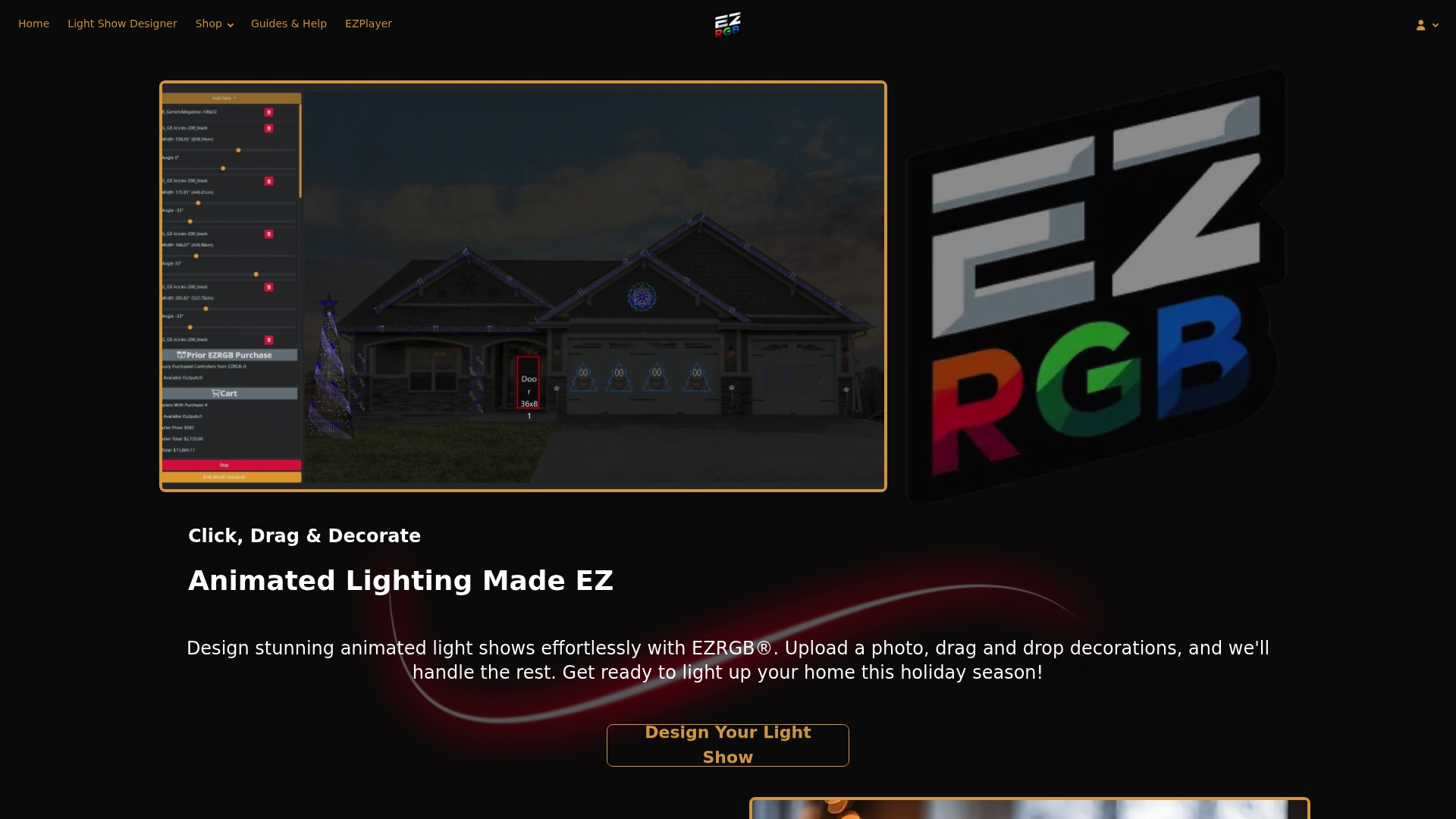
The Christmas Light Show Kit 1 is the fastest path from no display to a fully animated show, with everything included and pre-configured. Visit Ezrgb to upload your home photo and see your display before you buy a single prop.
Sources
-
Ever Wondered How Those Computer-Controlled Christmas Light Displays Work? | TechSpot
-
Christmas Light Show Design & Programming: A Venue Operator’s Guide | Yunyi Culture
FAQ
What does a show controller do in a holiday light display?
A show controller receives timed sequence data from a show player (such as EZPlayer or FPP) over E1.31 and converts it into WS2811 pixel signals that drive your animated props. It is the translation layer between your sequence file and your physical lights.
Do I need xLights if I use an EZRGB kit?
No. EZRGB’s EZSequence automatically generates a sequence mapped to your Layout Designer photo, so you do not need to build sequences manually in xLights. xLights remains an option for advanced users who want to create fully custom animations.
How many pixels can one controller handle?
That depends on the controller’s output count and universe support. One DMX universe addresses roughly 170 RGB pixels, so a controller with eight outputs and multiple universe support can handle several thousand pixels across a full display.
What is E1.31 and why does it matter?
E1.31 (also called Streaming ACN or sACN) is the network protocol that carries per-channel lighting data from your show player to your controller over a standard Ethernet connection. Most home show controllers and all EZRGB controllers support it natively.
How long does it take to get a show running with an EZRGB kit?
Small kits with pre-mapped sequences typically go from unboxing to first playback in an afternoon. Larger setups with more props and longer cable runs usually take 1–3 evenings to install and test fully.
